

1. ALL REGIONS
FEATURES
[#2298] Scheduler Updates
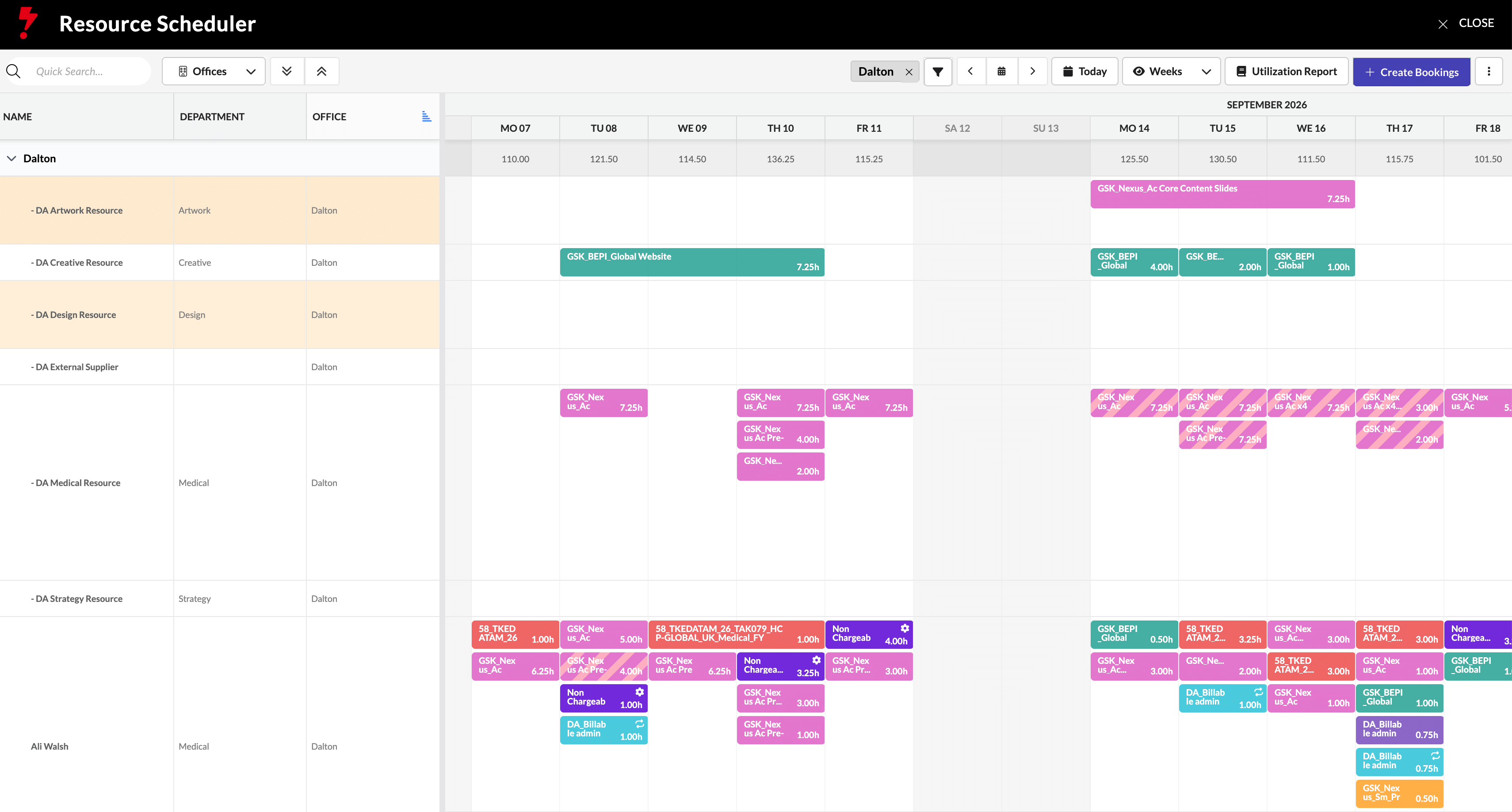
Scheduler Control Bar Updates
The Scheduler now has a refreshed control bar designed to make key actions easier to find and use. View and zoom controls have been simplified, with quicker access to the Utilization Report, Settings, Legend and Export options. The same updated experience is also available in Project > Resources.
Expanded Scheduler Colour Options
Scheduler bookings now support a broader colour palette, giving teams more flexibility to visually organise and distinguish bookings. A new Recently Used section also makes it faster to reuse colours you work with regularly. Selected colours are retained consistently across Scheduler and Project > Resources.
Smarter Scheduler Office Filtering
Scheduler office filters have been improved for teams working across multiple offices. Your Primary Office is now only applied when no other office filters are selected, making it easier to work with resources and projects outside your default office without filters being reapplied unexpectedly.
Task Titles in Scheduler Bookings
Scheduler bookings can now display Task Titles instead of Project Titles, giving teams greater flexibility in how work is represented on the schedule. This is particularly useful for task-focused workflows where the individual piece of work matters more than the parent project.
Bookings with multiple linked tasks show the number of tasks and the first task title, while bookings without a linked task are clearly identified as.
Open Tasks Directly from Scheduler Bookings
You can now open a linked Task directly from a Scheduler booking without leaving the Scheduler. Simply hover over a booking and select the Task link to open the Task flyout for quick review or editing.
Existing Task permissions are respected, so users will only be able to open Tasks they already have access to.
More Precise Booking Splits
Scheduler bookings can now be split at the specific day you select, giving you much greater control over how multi-day bookings are divided. Right-click on the required day within a booking and choose Split to create two bookings from that point.
This replaces the previous midpoint-based behaviour, reducing the need for manual adjustments after splitting and making it faster to reorganise scheduled work.
[#80881] Feature: Download Manager
The new Download Manager gives you one place to find, track and download your report exports. Instead of waiting on a page for a report to finish, you can carry on working and collect it here — and get a notification the moment it’s ready.
The highlights
- All your exports in one place — see everything you’ve exported in the last 30 days.
- Status at a glance — three cards show how many exports are Processing, Ready or Failed.
- One-click download — download a finished export straight away, no waiting.
- Know when it’s ready — get a browser notification anywhere in the app when a report is ready.
- Clear failure messages — if an export fails, you see a plain-English reason, never raw error text.
Where to find it
- Open the Inbox menu in the top navigation and click Download Manager. It opens on the My Exports tab.
My Exports
- A table of your exports: Report Name, Report Title, Requested At, Processed At, Number of Records, Status and Download.
- Dates show in your local time. Newest first, 50 per page, last 30 days.
- Search by report name or title as you type (not case-sensitive).
- The Download button is active only for Ready exports and starts the download immediately.
- Failed exports show a short plain-English reason instead of a download button.
“Report ready” notifications
- When a report becomes ready, you get a browser notification — wherever you are in the app.
- Clicking it opens the Download Manager. You’re notified once per export.
- Works for both manual and scheduled reports.
- The first time you request an export, your browser will ask permission to show notifications — allow it to be told the moment your reports are ready.
Good to know
- Only users with the “View Reports” permission can see and open the Download Manager.
- You only see your own exports
- Download links stay valid for 30 days from the request date — after that, just run the report again.
- If notifications are blocked, you’ll see a small in-app message instead of an error, and the export is still available in the Download Manager.
[#83439] Feature: Lock master client to contract client in the Project Wizard
You can now lock the relationship between a Master Client and a Contract Client on Project Wizard Agreements. Once locked, the Project Wizard uses that relationship to narrow down which Brands are available when someone selects that Contract Client, instead of showing every Brand for the office.
The highlights
- New “Lock” toggle — available on Agresso Financial Agreements that are set up through the Project Wizard. It only appears once both a Master Client and Contract Client are selected, and it’s off by default.
- Removing either client resets the lock — if you clear the Master Client or Contract Client after locking, the lock automatically switches back off.
- Brands narrow down automatically — when a Contract Client is locked to one or more Master Clients, the Project Wizard’s Brand list for that Office + Contract Client combination will only show Brands belonging to those locked Master Client(s), rather than every Brand for the office.
- You can lock more than one Master Client — a single Contract Client can be locked to multiple Master Clients per office; Brands from all of them will show.
- No lock, no change — if a Contract Client isn’t locked to any Master Client, the Brand dropdown works exactly as it does today, showing every active Brand mapped to the office.
Enhacements
[#79081] Enhancement: Add New colours
We’ve expanded the Scheduler booking colour palette from 12 to 24 colours and introduced a refreshed circular colour picker design. Users can now choose from a wider range of colours when creating and editing bookings.
A new Recently Used section has also been added, remembering up to five recently selected colours for faster access. Selected colours are now consistently saved and displayed across booking forms, Scheduler views, and Project Resources.
[#77102] Enhancement: Remove the Primary Office default filter if other office is used
We’ve improved Scheduler filtering to better support users working across multiple offices.
What’s changed
- Your Primary Office is now only applied automatically when no office filters are selected.
- If an office is selected in either Assigned User Office or Project Office, the Primary Office filter will not be added.
- This behaviour is maintained when:
- Resetting filters
- Removing office filter selections
- Refreshing the page
- Restoring filters from cookies
Benefit
- Makes it easier to view and manage resources across different offices without unexpected default filtering.
[#76666] Feature: Switch to show Task title instead of Project title
We’ve added a new Scheduler display option that allows bookings to show linked task titles instead of project titles.
What’s changed
- Added a toggle to switch between Project Title and Task Title views in Scheduler.
- When Task Title view is enabled:
- Bookings with no linked tasks display [no task]
- Bookings with one linked task display the task title
- Bookings with multiple linked tasks display the task count and first task title (e.g. “3 tasks: Project Brief, …”)
Benefit
- Makes Scheduler more task-focused for teams that manage work at the task level, while retaining the ability to switch back to project-based views.
[#76857] BE: Change the Folder of the JDR Reports
JDR reports (PDF and CSV) generated from the Finance tab now save to Finance > Agresso > Reports, instead of Finance > Agresso > Customer Invoices, keeping them better organized alongside other reports.
[#80334] Enhancement: Always display Project lvl reports (Project Finance Report & Timesheet Status Report) while on any part of Finance tab
Previously, the Project Finance Report and Timesheet Status Report were only accessible from the Finance tab’s Overview sub-tab, which made them easy to miss on other sub-tabs (like Invoices). These reports are now accessible from the menu on any Finance sub-tab.
[#79644] BE: Add validation on ‘save’ and ‘submit’
Added a validation check for Global Worker timesheets to make sure their resource has been fully created in Agresso before time can be saved or submitted. Previously, it was possible to save or submit time even while the underlying resource was still being set up (or had failed to be created), which could lead to failures further down the line. Now, if the resource isn’t ready, saving and submitting are blocked and a clear message is shown: “Your Global Worker Resource is still being created in Agresso. Please try again later.”
[#83379] FE: Update bulk create api to allow duplicate description from source task
Tasks duplicated from any Task Grid entry point, including Project Task Lists and Task Explorer, will now retain the original Task Description. Previously, duplicated Tasks were created without a Description; this update ensures the Description is copied exactly from the source Task while leaving the original Task unchanged, providing consistent duplication behaviour across all supported Task Grid actions.
[#83324] Add icon position prop and missing variants in V3 Button
The Pulse Components library has been enhanced with greater flexibility and consistency for V3 buttons. Developers can now use the new iconPosition property on PulseButtonV3 to display icons on either the left or right side of button text, with updated documentation, unit tests, and visual regression coverage included. This release also introduces the missing V3 Success button variant, adding dedicated success background and hover colours to align with the design system and support consistent positive-action styling across applications.
[#83155] Change Role Pricing closing dates
Fixed incorrect date ranges on historical Role Pricing records, caused by a sync issue where closed prices weren’t having their end date recorded correctly in Pronto. This led to overlapping date ranges that could affect retroactive timesheet pricing. A one-off data correction has now been run to bring these records in line with Agresso, along with a reusable script to repeat the fix for other Finance Profiles if needed. Any records that couldn’t be matched and corrected are reported to the tech support team for follow-up.
[#83154] Bug: Role Pricing Closure Sync not updating dates
Fixed an issue in the Role Pricing Closure sync where, when a price was closed in Agresso, Pronto correctly marked it as closed but didn’t record the date it closed. This could lead to overlapping date ranges affecting retroactive timesheet pricing. Closed prices now have their end date recorded correctly during the sync.
[#82947] Bug: “Bulk Add Project” Missing on Project Relations & Project Details
Added the “Bulk Add Project” button to the project selection step for Project Relations and Project Details bulk amendments. This lets you paste in a list of job numbers to add projects in bulk, the same way you already can on other amendment types.
FIXES
[#82750] Time Reports: Saved Filters does not capture column order
Saved Filters in the Time Report and Pending Approval report now remember your column order and preferred sort, not just your filter selections. If you reorder columns or change the sort before saving a filter, that layout is restored whenever you load that saved filter again.
[#82933] Bug: Select Finance Profile dropdown is not permissioned
Updated the Finance Profile dropdown in Bulk Amendments so it only shows the Finance Profiles you actually have access to, rather than every option. Local admins now see just their own office’s Finance Profile, network admins see the profiles within their network, and superusers continue to see all of them.
[#82923] Bug: Project > Tasks: can’t delete this specific Saved Filter
Fixed an issue in Task Saved Filters (on both the Project Tasklist and Task Explorer) where certain saved filters couldn’t be deleted. Clicking delete on an affected filter now removes it from the list as expected.
[#83638] Bug: Bulk Project Amendment – Warning not working as expected
Fixed an issue where Bulk Amendments on Project Statis that hit a warning in Agresso could get stuck in ‘pending’ instead of showing up as failed.
Previously, when a project had a warning during processing in bulk project amendments, it could stay in a pending state rather than being marked “failed with warnings.
Warnings are now correctly flagged as failed so they show up for review and resubmission, and once you confirm you want to bypass the warning, reprocessing now completes as expected. We’ve also cleared out any amendments that were previously stuck in this state so they can be resubmitted normally.
[#83447] Fix: Pending Hours on Pulse
Fixed an issue in the Timesheets Pending Approval report where the hours total didn’t match the number of records shown. Previously, the report could display a hour total that was much higher than expected even when the record count was correct, making it hard to trust the figures at a glance. The hours shown now correctly reflect the records in the report.
[#83429] Grand Total incl Tax in BOLD on pdf
Fixed an issue on the Estimate PDF where the “Grand Total incl. VAT” value wasn’t displayed in bold. Previously, this made it easy to mistake an earlier subtotal for the actual final amount due. The Grand Total incl. VAT (or other tax, such as GST) is now shown in bold on the PDF, so it’s clear which figure is the final total.
[#83225] Fix: Timesheet-to-Agresso Comparison
Fixed an issue where submitted timesheets could be incorrectly flagged with a “Timesheets already exist in agresso, but do not match what we have in pulse” error, even though the hours actually matched. This mostly affected US timesheets, particularly INHOUSE (non-billable) time, and could also affect multi-role time entries in other regions.
The highlights
- Accurate matching — the comparison between Pronto and Agresso now correctly accounts for records that share the same date, project, and activity, so hours are no longer dropped from the comparison and false mismatch errors are eliminated.
- Clearer error messages — when a genuine mismatch does occur, the error message now clearly states whether the extra hours are in Pronto or in Agresso.
- Updated terminology — error messages and related screens now consistently say “Pronto” (instead of “Pulse”) and “Global Worker” (instead of “Alien User”).
[#83176] Bug: Fix Finance Detail Report columns
Updated and cleaned up several columns in the Finance Detail Report, in both the on-screen view and the export. Some columns have been renamed for clarity, one duplicate column has been removed, and a couple of columns now pull from a more accurate data source, so the values line up correctly with what’s shown elsewhere in Pronto.
What’s changed
- “Item Groups” is now called “Group” (this column is specific to non-Agresso offices).
- “Activity Description” has been removed, as it duplicated the “Activity” column.
- “Activity Tracking Code” is now called “Activity Code”, and now correctly shows a single code rather than a list of values.
- “Deliverable Tracking Code” is now called “Role/Deliverable Code”.
- A new “Activity Type Name” column has been added, shown right after “Activity Type” (e.g. “1. Timesheet”, “4a. Purchase Order”).
Column order
The columns now appear in this order: Activity Type, Activity Type Name, Group, Activity, Activity Code, Role/Product, Role/Deliverable Code, Description.
Also included
- You can now filter the report by Group, Activity Type Name, and Activity Code.
- Access to Activity/Tracking Code data is limited to the offices you have permission to see.