Pronto
  • Features
    • Features overview

      Pronto combines every stage of project delivery, from briefing through to reporting, into one streamlined system that keeps everything connected.

    • Project management

      Start with a simple brief and let the Project Wizard instantly generate your timeline, task list, and resource bookings.

    • Finance & reporting

      Track time, costs, margins, and POs directly within each project with no separate systems needed.

    • Team & resource tools

      Assign the right people in seconds with live availability and one-click bookings, all from the task view.

    • Dashboards & visibility

      Build a personalised homepage that highlights what matters most- deadlines, budgets, tasks, and more.

    • Document management & approvals

      Every file is stored where it belongs-linked to the right project, task, or review for easy access.

    • AI & automation

      Upload a brief and let Pronto’s AI generate a complete, connected plan- timeline, tasks and resourcing included.

  • Industries
    • Advertising

      Pronto keeps creative projects on time, on brief, and on budget – linking timelines, feedback, finances and files in one seamless flow.

    • Production

      From shoots to post, Pronto keeps production teams aligned with live task tracking, resourcing, and budget control.

    • Consulting

      Stay responsive and in control of fast-moving client work. Pronto links tasks, timelines, hours, and budgets -all in one place.

    • Public relations

      Bring your campaigns, content, and client work together in one platform. Pronto helps teams move faster, align clearly, and focus on impact.

    • Marketing & comms

      Manage campaigns, content, and comms with clarity. Pronto connects teams, tasks, assets, and approvals to keep everything on track.

    • Government

      Pronto helps government teams manage complex projects with structure and oversight, aligning stakeholders and tracking progress in one secure system.

  • Pronto Academy
    • Pronto for beginners

      If you are just starting with Pronto and want to get a quick overview of the features and how to get started – these are the modules for you.

    • Feature training modules

      Learn about specific features in Pronto, to become a Pronto pro.

Searching...
Contact Us
Searching...
  1. Home
  2. Knowledge Base
  3. Common User Issues
  4. I cannot login to Pulse

I cannot login to Pulse

If you are unable to login to Pulse there are a couple of things you can try yourself that may immediately correct your login issue.

Please note that there can be up to a 48 hour difference between your account created on Pulse and your account in Globalservs.

1. Use your Havas Globalservs credentials

On the login screen, choose the Login with Havas Credentials option on the left and select Havas Group Employee. 
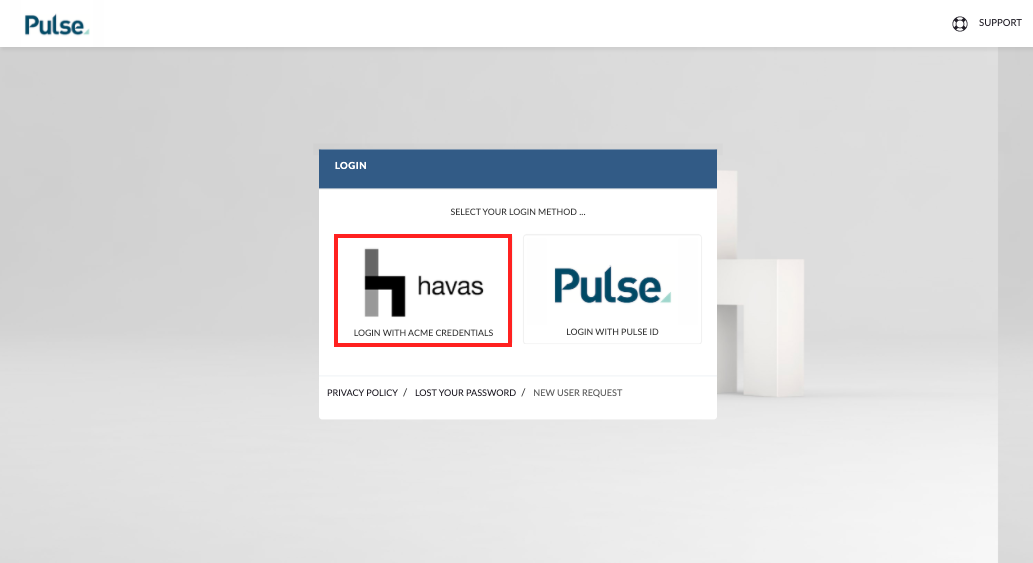
Screenshot of the Pulse login page highlighting the Havas login button

The popup will accept your Globalservs credentials.

  • your username is  globalservs\firstName.fastName  
  • your password is the same as what you use to log into your computer. 
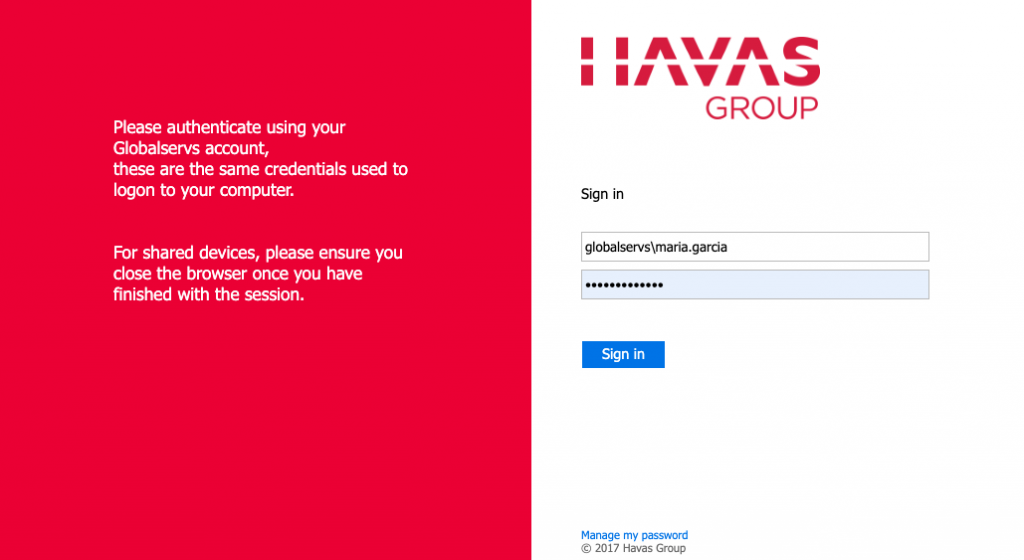
Screenshot of the Globalservs Authentication page highlighting where to enter you Globalservs credentials

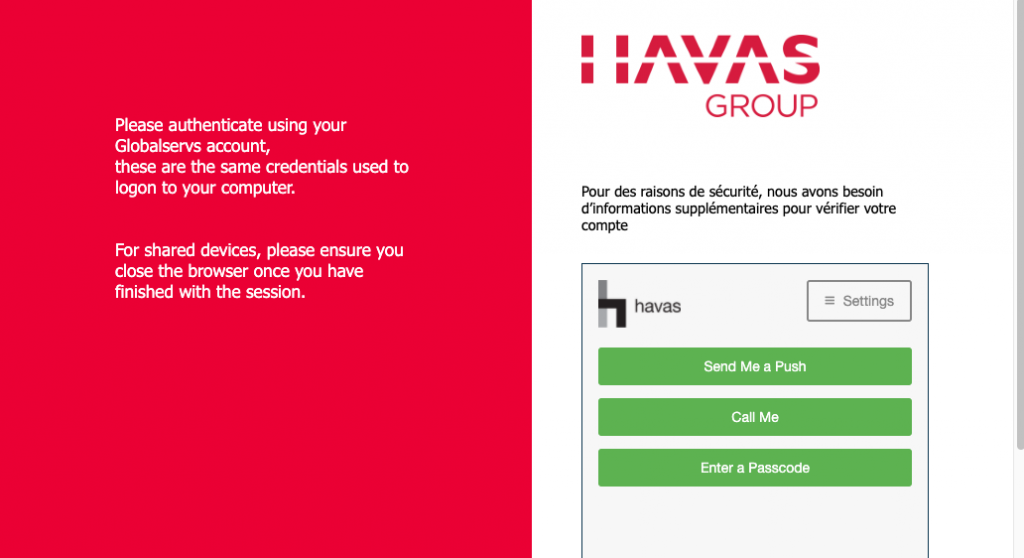
Select the method you would like to use to authenticate:

  • Send me a Push
  • Call me
  • Enter a passcode

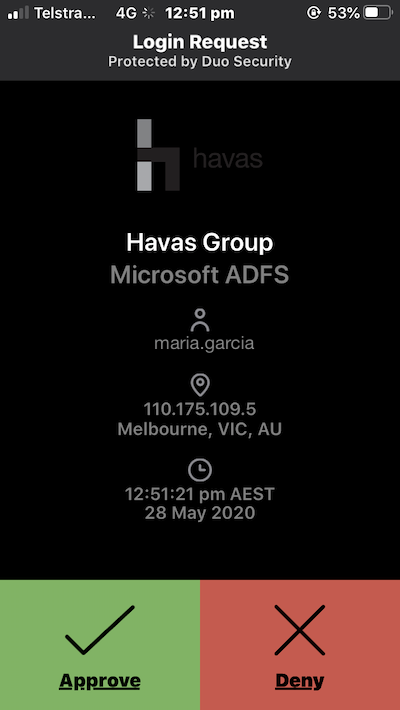
If you have the DUO app on your phone, you can use the “Send me a Push”. This will immediately send a push notification to your phone.

Please make sure you accept the DUO authentication so you can access Pulse after signing in.
Forgot you Password?

  • You have forgotten your password and need to reset it

2. Check your browser’s address bar

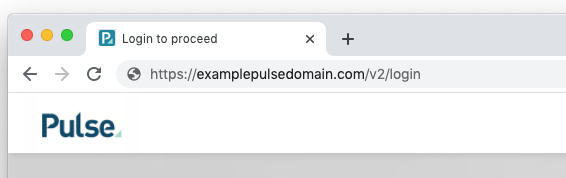
Check that you have entered the correct URL in your browser’s address bar. Some web browsers will conceal the full URL – hiding everything except the domain name. To see the full URL click into the address field to give it focus.

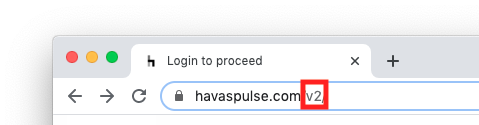
  • Are you are going to https://havaspulse.com/v2 
  • please check the end of the URL which should read “v2“
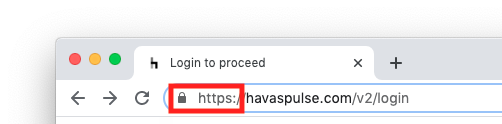
  • please check the start of the URL which should read “https://“. :
3. Check for browser or network issues

Sometimes the browser you are using, or the Network you are accessing the internet may have issues that are preventing you from accessing Pulse.

  1. You can also try logging in with another browser if you have one installed on your computer.
  2. Check if anyone else in your office can connect to Pulse. If someone else can, it could possibly be an issue is with your PC or a firewall issue?

Please reach out to Havas IT support to resolve and browser or network issues you may be experiencing.

KB.43559

Updated on August 3, 2020
Tagged: Login

Was this article helpful?

Yes No

Related Articles

  • KIN Accounts – What are they used for and how do I create them?
  • I can’t mark users as Alien
  • I can’t Close a Project in the Finance Settings (Agresso)
  • I can’t see “Create Project”(Project Wizard) on my Dashboard
  • I can’t find a Project in Dashboard, Global Search, Project List, or Task Lists
  • I can’t see a Brand (Product) in the Project Wizard
Pronto
Company
  • Contact
  • About Pronto
Training & Support
  • Pronto Academy
Help & Support
  • Raise a support ticket
Pronto Blog
  • Pronto blog
  • Release notes
  • New features
 
Pronto Support Chat